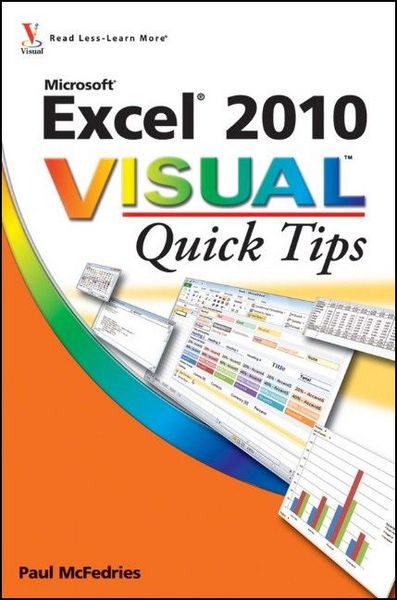
Produktbild: Excel 2010 Visual Quick Tips

Excel 2010 Visual Quick Tips

Fr. 28.90

inkl. gesetzl. MwSt., zzgl. Versandkosten


  • Kostenlose Lieferung ab Fr. 30 Einkaufswert

    Schweiz & Liechtenstein:

    Versandkostenfrei ab Fr. 30.00
    Versandkosten bis Fr. 30.00: Fr. 3.50

    Andere Lieferländer

    Fr. 18.00 unabhängig vom Warenwert

Beschreibung

Produktdetails

Einband

Taschenbuch

Erscheinungsdatum

01.05.2010

Verlag

John Wiley & Sons Inc

Seitenzahl

304

Maße (L/B/H)

22.9/15.2/1.3 cm

Gewicht

544 g

Auflage

1. Auflage

Sprache

Englisch

ISBN

978-0-470-57776-9

Beschreibung

Produktdetails

Einband

Taschenbuch

Erscheinungsdatum

01.05.2010

Verlag

John Wiley & Sons Inc

Seitenzahl

304

Maße (L/B/H)

22.9/15.2/1.3 cm

Gewicht

544 g

Auflage

1. Auflage

Sprache

Englisch

ISBN

978-0-470-57776-9

Noch keine Bewertungen vorhanden

Verfassen Sie die erste Bewertung zu diesem Artikel

Helfen Sie anderen Kundinnen und Kunden durch Ihre Meinung.

Kundinnen und Kunden meinen

Bewertungen (0)

  • Produktbild: Excel 2010 Visual Quick Tips
  • Chapter 1: Making Excel More Effecient.

    Customize the Quick Access Toolbar.

    Customize the Ribbon.

    Export Ribbon Customizations to a File.

    Configure Excel to Use the Mouse Wheel for Zooming.

    Move in a Different Direction When You Press Enter.

    Automatically Insert a Decimal Point.

    Configure When Excel Warns You About Long Operations.

    Pin Excel to the Windows 7 Taskbar.

    Make a Workbook Faster by Saving it as Binary.

    Open a New Window for a Workbook.

    Allow Only Certain Values in a Cell.

    Apply Text or Formatting to Multiple Worksheets.

    Quickly Display the Office Clipboard.

    Use Dialog Box Controls to Input Data.

    Check for Accessibility Problems.

    Chapter 2: Making It Easier to Manage Workbooks.

    Increase the Number of Recent Documents.

    Open Workbooks Automatically at Startup.

    Create a Workspace of Workbooks.

    Specify a New Default File Location.

    Set the Default Font and Font Size for New Workbooks.

    Set the Default Number of Worksheets for New Workbooks.

    Repair a Corrupted Workbook File.

    Convert a Workbook to a PDF File.

    Create a Workbook Template.

    Create a New Workbook from an Existing File.

    Compare Two Workbooks Side by Side.

    Check for Features Not Supported by Earlier Excel Versions.

    Chapter 3: Customizing Worksheet Presentation.

    Create Custom Numeric Formats.

    Create Custom Date and Time Formats.

    Set the Default Width for All Columns.

    Hide Columns and Rows.

    Create a Custom Fill List.

    Maximize Work Space by Turning Off Window Elements.

    Create a Custom Cell Style.

    Build a Custom Table Style.

    Create a Custom Color Scheme.

    Create a Custom Font Scheme.

    Save a Custom Workbook Theme.

    Build a Custom Header and Footer.

    Customize the Excel Status Bar.

    Minimize the Ribbon.

    Chapter 4: Getting More Out of Formulas.

    Paste a Formula's Result.

    Show Formulas Instead of Results.

    Use a Watch Window to Monitor a Cell Value.

    Use Absolute Cell References in a Formula.

    Create an Array Formula.

    Apply Range Names to Formulas.

    Create a Link to Another Worksheet.

    Combine Two Ranges Arithmetically.

    Troubleshoot a Formula by Stepping Through Each Part.

    Skip Data Tables When Calculating Workbooks.

    Turn On Iterative Calculations.

    Display Text Rather than Error Values.

    Check for Formula Errors in a Worksheet.

    Audit a Formula to Locate Errors.

    Chapter 5: Analyzing Excel Data.

    Highlight Cells That Meet Some Criteria.

    Highlight the Top or Bottom Values in a Range.

    Analyze Cell Values with Data Bars.

    Analyze Cell Values with Color Scales.

    Analyze Cell Values with Icon Sets.

    Create a Custom Conditional Formatting Rule.

    Calculate Multiple Solutions to a Formula.

    Plug Multiple Input Values into a Formula.

    Calculate the Break-Even Point.

    Consolidate Data from Multiple Worksheets.

    Filter Table Data.

    Remove Duplicate Values from a Table.

    Create an Outline Automatically.

    Enable the Analysis ToolPak Add-In.

    Chapter 6: Analyzing Data with PivotTables.

    Build a PivotTable from an Excel Table.

    Create a PivotTable from External Data.

    Refresh PivotTable Data.

    Add Multiple Fields to the Row or Column Area.

    Add Multiple Fields to the Data Area.

    Move a Field to a Different Area.

    Apply a Report Filter.

    Apply a PivotTable Quick Style.

    Change the PivotTable Summary Calculation.

    Customize the PivotTable Field List.

    Create a PivotChart from a PivotTable.

    Chapter 7: Importing Data into Excel.

    Understanding External Data.

    Import Data from a Data Source.

    Import Data from an Access Table.

    Import Data from a Word Table.

    Import Data from a Text File.

    Import Data from a Web Page.

    Import Data from an XML File.

    Refresh Imported Data.

    Separate Cell Text into Columns.

    Chapter 8: Querying Data Sources.

    Understanding Microsoft Query.

    Define a Data Source.

    Start Microsoft Query.

    Tour the Microsoft Query Window.

    Add a Table to the Query.

    Add Fields to the Query.

    Filter the Records with Query Criteria.

    Sort the Query Records.

    Return the Query Results.

    Chapter 9: Protecting Excel Data.

    Open a Read-Only Version of a Workbook.

    Mark a Workbook as Final to Avoid Accidental Editing.

    Protect Workbooks by Shortening the AutoRecover Interval.

    Specify the Cells that Users Can Edit.

    Hide a Formula.

    Protect a Range with a Password.

    Protect the Data in a Worksheet.

    Protect a Workbook's Windows and Structure.

    Restore a Previous Version of a Workbook.

    Hide a Worksheet.

    Track Workbook Changes.

    Chapter 10: Maximizing Excel Security and Privacy.

    Open a Workbook in Protected View.

    Block Dangerous Excel File Types.

    Set the Macro Security Level.

    Digitally Sign Your Excel Macros.

    Create a Trusted Location for Opening Files.

    Inspect a Workbook for Private Data.

    Assign a Password to a Workbook.

    Turn On Parental Control in Excel.

    Disable External Data Connections and Links.

    Apply a Digital Signature to a Workbook.

    Chapter 11: Learning VBA Basics.

    Record a Macro.

    Open the VBA Editor.

    Explore the Excel Object Model.

    Add a Macro to a Module.

    Run a Macro.

    Assign a Shortcut Key to a Macro.

    Assign a Macro to the Quick Access Toolbar.

    Assign a Macro to the Ribbon.

    Index.