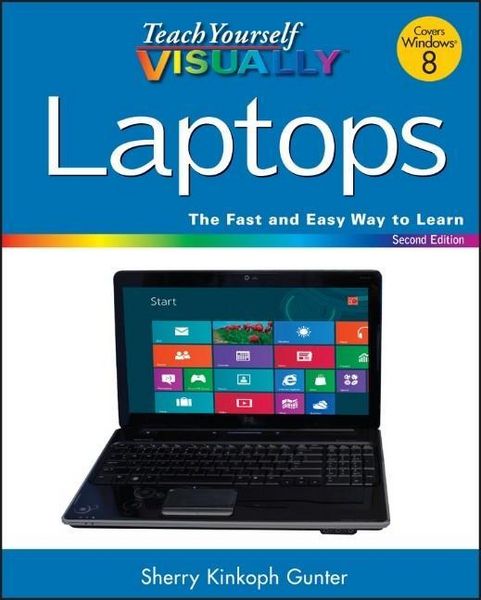
Produktbild: Teach Yourself VISUALLY Laptops

Teach Yourself VISUALLY Laptops

Fr. 41.90

inkl. gesetzl. MwSt., Versandkostenfrei


Beschreibung

Produktdetails

Einband

Taschenbuch

Erscheinungsdatum

05.10.2012

Verlag

John Wiley & Sons

Seitenzahl

336

Maße (L/B/H)

18.7/23.2/1.7 cm

Gewicht

778 g

Auflage

2. Auflage

Sprache

Englisch

ISBN

978-1-118-25291-8

Beschreibung

Produktdetails

Einband

Taschenbuch

Erscheinungsdatum

05.10.2012

Verlag

John Wiley & Sons

Seitenzahl

336

Maße (L/B/H)

18.7/23.2/1.7 cm

Gewicht

778 g

Auflage

2. Auflage

Sprache

Englisch

ISBN

978-1-118-25291-8

Kundinnen und Kunden meinen

0 Bewertungen

Informationen zu Bewertungen

Zur Abgabe einer Bewertung ist eine Anmeldung im Konto notwendig. Die Authentizität der Bewertungen wird von uns nicht überprüft. Wir behalten uns vor, Bewertungstexte, die unseren Richtlinien widersprechen, entsprechend zu kürzen oder zu löschen.

Die Bewertungen sind nach Format, Anzahl Sterne und Datum sortiert.

Verfassen Sie die erste Bewertung zu diesem Artikel

Helfen Sie anderen Kund*innen durch Ihre Meinung

Kundinnen und Kunden meinen

0 Bewertungen filtern

Die Leseprobe wird geladen.
  • Produktbild: Teach Yourself VISUALLY Laptops
  • Chapter 1 Introducing Laptops

    Study Laptop Anatomy 4

    Review Types of Laptops 6

    Explore Microprocessors 8

    Explore Power Options 9

    Understanding Hard Drives 10

    Understanding Types of Data Storage 12

    Understanding Types of Slots and Ports 14

    Chapter 2 Shopping for a Laptop

    Choose an Operating System 18

    Select a Microprocessor 20

    Choose the Right Weight 21

    Choose the Best Battery 22

    Compare Monitor Display Sizes 23

    Assess Graphics Capabilities 24

    Explore Wireless Capabilities 25

    Determine Memory and Storage Needs 26

    Compare Keyboard and Mouse Features 28

    Consider Extra Features and Add-Ons 30

    Make a Shopping List 32

    Find the Best Laptop 33

    Chapter 3 Adding Peripherals and Accessories

    Get Extra Cables 36

    Add Input Devices 37

    Add External Storage Devices 38

    Find the Right Laptop Case 40

    Using Cooling Pads 41

    Using Docking Stations 42

    Add a Printer or Scanner 43

    Add Security Items 44

    Add Headphones 45

    Add Portable Accessories 46

    Add Memory 47

    Chapter 4 Setting Up Your New Laptop

    Understanding Laptop Basic Operations 50

    Connect Cables and Peripherals 51

    Charge the Battery 52

    Turn the Laptop On 53

    Using a Touchpad 54

    Explore a Wireless Mouse 55

    Get to Know the Keyboard 56

    Connect a Printer or Hardware Device from Windows 58

    Chapter 5 Exploring Windows 8

    Introducing Windows 8 62

    Explore New Navigation Techniques 64

    Log On to Windows 8 65

    Get to Know the Windows 8 Start Screen 66

    Access the Windows 8 Start Screen 67

    Launch Windows 8 Apps 68

    Find an App 69

    Shop for Apps 70

    Work with the Charms Bar 71

    Work with the App Bar 72

    Access PC Settings 73

    Pin Items to the Start Screen 74

    Shut Down Windows 8 75

    Access the Desktop 76

    Get to Know the Windows Desktop 77

    View Your Computer's Contents 78

    Empty the Recycle Bin 79

    View Mobility Settings 80

    Find Help 82

    Chapter 6 Personalizing Your Laptop

    Change the Screen Resolution 86

    Change Your Account Picture 88

    Customize the Start Screen 90

    Personalize the Lock Screen 92

    Customize Start Screen Tiles 94

    Add a New User Account 98

    Change the Desktop Background 100

    Set the Date and Time 102

    Adjust Laptop Volume 104

    Chapter 7 Working with Software

    Understanding Software 108

    Install a Program 110

    Open and Close a Program 112

    Explore a Program Window 114

    Resize and Move Program Windows 116

    Work with Multiple Program Windows 118

    Using a Ribbon 120

    Using Menus, Buttons, and Lists 122

    Work with Dialog Boxes 124

    Create and Save a File 126

    Open a File 128

    Print a File 129

    Chapter 8 Performing Popular Software Tasks

    Schedule Dates with the Calendar App 132

    Find a Location with the Maps App 134

    Explore Windows Accessories 136

    Enter and Edit Text in WordPad 138

    Format Text in WordPad 140

    Create Pictures with Windows Paint 144

    Explore Microsoft Office 146

    Add a Game App 148

    Chapter 9 Managing Computer Files and Folders

    Understanding File Formats 152

    View Files and Folders 154

    Navigate Folder Windows 155

    Open Files and Folders 156

    Create a New Folder158

    Select Files and Folders 159

    Move and Copy Files and Folders 160

    Rename a File or Folder 162

    Compress a File or Folder 163

    Extract Compressed Files 164

    Search for Files and Folders 165

    Sort and Filter Files 166

    Tag Files 168

    Delete a File or Folder 170

    Chapter 10 Connecting to a Network

    Understanding Computer Networks and Devices 174

    Understanding Wireless Computing 176

    Review a Home-based Network Setup in Windows 8 178

    Connect to a Wireless Network 180

    Share Files and Folders via Public Folders 182

    Set Up a Homegroup 184

    Share Within Your Homegroup 186

    Chapter 11 Exploring the Internet

    Understanding the Internet and the World Wide Web 190

    Launch the Internet Explorer Windows 8 App 192

    Launch the Desktop Internet Explorer Browser 193

    Open a Web Page 194

    Search the Web 195

    Keep Track of Your Favorite Pages 196

    Change Your Home Page 198

    Chapter 12 Communicating Online

    Understanding E-Mail 202

    Using the Mail App 204

    Add an Account to the Mail App 206

    Send an E-Mail with the Mail App 208

    Reply to a Message 210

    Forward a Message 211

    Work with File Attachments 212

    Save a Message as a Draft 214

    Move a Message to a Folder 215

    Using the People App 216

    Using the Messaging App 218

    Explore Video Conferencing 220

    Chapter 13 Working with Digital Images

    View Photos with the Photos App 224

    View Photos in the Pictures Library 226

    View Photos with Windows Photo Viewer 228

    Play a Slide Show Using Windows Photo Viewer 230

    Explore Windows Live Photo Gallery 231

    Import Pictures from a Camera 232

    Batch-Rename Photo Files 234

    Tag Photo Files 235

    Auto-Adjust a Photo 236

    Crop a Photo 237

    Create and Publish an Online Photo Album 238

    Chapter 14 Working with Audio and Video

    Use the Music and Video Apps 242

    Open Windows Media Player 244

    Build Your Media Library 246

    Listen to Music 248

    Watch Video Content 250

    Create and Save Playlists 252

    Burn CDs and DVDs 254

    Connect and Test a Microphone 256

    Chapter 15 Managing Laptop Power

    Understanding Power Management 260

    Create a Power Plan 262

    Adjust Screen Brightness 264

    Check Battery Charge 265

    Using Your Battery Efficiently 266

    Control Power Button Function 268

    Chapter 16 Maintaining Your Laptop

    View PC Settings 272

    Explore the Control Panel 274

    Update Your Operating System 276

    Back Up Data with File History 278

    Free Up Disk Space 280

    Defragment Your Hard Drive 282

    Check Your Hard Drive for Errors 284

    Clean and Protect Your Screen and Keyboard 286

    Chapter 17 Keeping Your Laptop Secure

    Understanding Computer Security 290

    Protect Your Laptop on the Road 292

    Protect Yourself Online 293

    Improve Email Privacy 294

    Understanding Password Protection Strategies 295

    Password-Protect Your Laptop 296

    Set a Picture Password 298

    Encrypt Your Data 302

    Thwart Intruders with Windows Firewall 304

    Enable Parental Controls 308

    Filter Spam and Scams with Windows Live Mail 312

    Check for Spyware with Windows Defender 314

    Check Problems with the Action Center 316

    Index 318