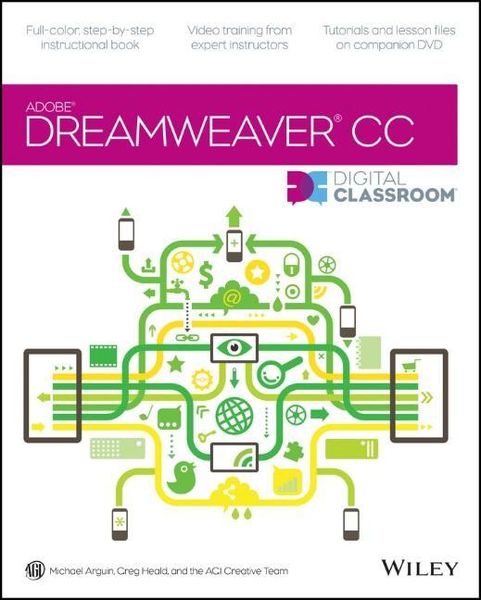
Produktbild: Dreamweaver CC Digital Classroom

Dreamweaver CC Digital Classroom Inkl. Download

Aus der Reihe Digital Classroom
1

Fr. 72.90

inkl. gesetzl. MwSt., Versandkostenfrei


Beschreibung

Produktdetails

Einband

Taschenbuch

Erscheinungsdatum

02.08.2013

Abbildungen

mit Illustrationen

Verlag

John Wiley & Sons Inc

Seitenzahl

512

Maße (L/B/H)

23.1/18.9/2.4 cm

Gewicht

1036 g

Auflage

1. Auflage

Sprache

Englisch

ISBN

978-1-118-64015-9

Beschreibung

Produktdetails

Einband

Taschenbuch

Erscheinungsdatum

02.08.2013

Abbildungen

mit Illustrationen

Verlag

John Wiley & Sons Inc

Seitenzahl

512

Maße (L/B/H)

23.1/18.9/2.4 cm

Gewicht

1036 g

Auflage

1. Auflage

Sprache

Englisch

ISBN

978-1-118-64015-9

EU-Ansprechpartner

Zeitfracht Medien GmbH
Ferdinand-Jühlke-Straße 7, 99095 - DE, Erfurt
produktsicherheit@zeitfracht.de

Herstelleradresse

Wiley & Sons
1 Oldlands Way, Bognor Regis, PO22 9NQ - GB, West Sussex
trade@wiley.com

Noch keine Bewertungen vorhanden

Verfassen Sie die erste Bewertung zu diesem Artikel

Helfen Sie anderen Kundinnen und Kunden durch Ihre Meinung.

Kundinnen und Kunden meinen

Bewertungen (0)

  • Produktbild: Dreamweaver CC Digital Classroom
  • Starting up

    About Dreamweaver Digital Classroom 1

    Prerequisites 1

    System requirements 1

    Starting Adobe Dreamweaver CC 2

    Resetting the Adobe Dreamweaver CC workspace 3

    Loading lesson files 5

    Working with the video tutorials 6

    Setting up for viewing the video tutorials 7

    Viewing the video tutorials with the Adobe Flash Player 7

    Hosting your websites 7

    Additional resources 8

    Lesson 1: Dreamweaver CC Jumpstart

    Starting up 9

    What is Dreamweaver? 10

    Design and layout tools 10

    Site management and File Transfer Protocol 11

    Coding environment and text editor 11

    Mobile design and development features 12

    Who uses Dreamweaver? 13

    Dreamweaver's workspace features 13

    Live View and Live Code 16

    CSS Inspection and the Enable/Disable Feature 16

    Related files 17

    Code Navigator 18

    Photoshop smart objects 19

    Support for Content Management Systems 19

    HTML5, CSS3, and PHP code hinting 20

    HTML and CSS Starter Pages 20

    Subversion 20

    Business Catalyst integration 21

    How websites work 21

    A simple flow chart 21

    Domain names and IP addresses 22

    Servers and web hosts 22

    The role of web browsers 22

    An introduction to HTML 22

    Tag structure and attributes 23

    The structure of an HTML document 25

    Placing images in HTML 25

    Colors in HTML 27

    Case sensitivity and whitespace rules 28

    Element hierarchy 30

    HTML5 30

    Explorations in code 30

    A look at the Welcome Screen 31

    Creating, opening, and saving documents 32

    Creating new documents 32

    Self study 34

    Review 34

    Lesson 2: Setting Up a New Site

    Starting up 35

    Creating a new site 36

    Advanced site-creation options 39

    Adding pages 41

    Saving a page to your site 44

    Defining page properties 45

    Work views 51

    A deeper look into the Files panel 53

    Viewing local files 54

    Selecting and editing files 54

    Self study 56

    Review 56

    Lesson 3: Adding Text and Images

    Starting up 57

    Typography and images on the Web 58

    Adding text 58

    An introduction to styles 64

    Previewing pages in a web browser 69

    Understanding hyperlinks 71

    Creating hyperlinks 72

    Relative versus absolute hyperlinks 74

    Linking to an e-mail address 76

    Creating lists 76

    Using the Text Insert panel 78

    Inserting images 80

    Image resolution 80

    Image formats 80

    Creating a simple gallery page 81

    Linking images 84

    Editing images 85

    Adjusting brightness and contrast 85

    Optimizing images 86

    Updating images 87

    Self study 88

    Review 88

    Lesson 4: Styling Your Pages with CSS

    Starting up 89

    What are Cascading Style Sheets? 90

    CSS replaces inefficient HTML styling 91

    The benefits of CSS styling 92

    How do you create CSS rules in Dreamweaver? 94

    Understanding Style Sheets 98

    Understanding why they're called Cascading 101

    Creating and modifying styles 102

    Creating a class style with the CSS Designer panel 105

    Creating and modifying styles 108

    Advanced text formatting with CSS 111

    Fine-tuning page appearance with contextual and pseudo-class selectors 114

    Div tags and CSS IDs 117

    Internal versus external style sheets 119

    Attaching an external style sheet to your page 121

    Modifying attached style sheets 122

    Creating a new css file (external style sheet) 124

    Self study 126

    Review 126

    Lesson 5: Creating Page Layouts with CSS

    Starting up 127

    The CSS Box model 128

    The basics of CSS margins, padding, and borders 128

    Reviewing the element 129

    Reviewing the ID selector 129

    Creating a centered container for your page 131

    Absolute versus relative positioning 135

    Creating a header using a relative positioned div 137

    Positioning content with absolute-positioned divs 139

    Adding an introduction section to your page 139

    Adding images to your layout 141

    Photoshop integration 143

    Adding Main and Sidebar content areas 144

    Adding additional content and styles 146

    Setting margins and borders 147

    Overriding default margins in CSS 148

    Adding borders to elements 150

    Future proofing your layout 151

    The pros and cons of Absolutely Positioned CSS layouts 152

    Self study 155

    Review 155

    Lesson 6: Advanced Page Layout

    Starting up 157

    Layout with absolute-position divs versus layout with floats 158

    Creating a floated image 159

    Creating columns with HTML and CSS 162

    Creating the structure with divs and HTML5 semantic elements 162

    Setting the width and floating the columns 165

    Using the property 167

    Creating a list-based navigation bar 168

    Changing column layout and size 173

    Creating the appearance of equal height columns 175

    Applying finishing touches 178

    Creating more sophisticated layouts 179

    Dreamweaver Fluid Grid Layout 180

    Self study 181

    Review 181

    Lesson 7: CSS3 Transitions and Styles

    Starting up 183

    Understanding the role of CSS3 184

    Adding a CSS Transition 184

    Modifying a CSS Transition 190

    Adding CSS Transitions to a navigation menu 196

    Adding a CSS Gradient 199

    Applying a CSS Gradient to the page background 203

    Creating rounded borders 206

    Self study 210

    Review 210

    Lesson 8: Using Web Fonts

    Starting up 211

    The basics of web fonts 212

    Web Fonts in Dreamweaver CC 212

    Using Adobe Edge Web Fonts 213

    Creating a custom font stack using web fonts 217

    Styling your content with Adobe Edge Web Fonts 219

    Adding local web fonts with 220

    Styling your heading with a local web font 225

    Self study 228

    Review 228

    Lesson 9: Working with Tables

    Starting up 229

    Using tables in web design 230

    Importing table data 230

    Selecting table elements 232

    Modifying table size 234

    Modifying table structure 237

    Creating a table 238

    Formatting and styling tables in HTML 240

    Formatting and styling tables with CSS 245

    Advanced CSS styling of tables 248

    Controlling cell alignment, padding, and borders with CSS 250

    Creating alternate row styling with CSS 252

    Reusing CSS for other tables 254

    Data sorting tables 255

    Self study 257

    Review 257

    Lesson 10: Fine-Tuning Your Workflow

    Starting up 259

    Customizing panels and panel groups 260

    Using the Favorites tab on the Insert bar 263

    Resizing the document window 264

    Using guides 267

    Using grids 273

    The tag selector 275

    Tiling documents 277

    Self study 278

    Review 278

    Lesson 11: Adding Video, Audio and Interactivity

    Starting up 279

    Making web content interesting 280

    Adding video 280

    HTML5 video 280

    Flash video 283

    QuickTime and Windows Media 286

    Inserting Flash animations 289

    Inserting Edge Animate animations 292

    Inserting sound with the HTML5 audio element 294

    Self study 298

    Review 298

    Lesson 12: Maximizing Site Design

    Starting up 299

    Creating modular page elements 300

    Introducing snippets 300

    The Snippets panel 301

    Creating new snippets 302

    Introducing library items 306

    Modifying and updating library items 308

    Introducing templates 310

    Creating a new template 311

    Working with editable regions 312

    Creating new pages from templates 313

    Modifying templates 315

    Repeating regions 316

    Putting repeating regions into action 318

    Detach from Template command 319

    Self study 320

    Review 320

    Lesson 13: Working with Code-editing Features

    Starting up 321

    Working with code 322

    Accessing code with the Quick Tag editor 322

    Using HTML5 Code-hinting 323

    Working in the Code view 325

    Modifying the Code view workspace 325

    The Coding toolbar 328

    Collapsing and expanding tags and code blocks 330

    Validating your code 331

    Highlighting and correcting invalid code 331

    Running a report 333

    Formatting code 334

    Indenting 337

    Self study 338

    Review 338

    Lesson 14: Building HTML5 Web Forms

    Starting up 339

    The basics of HTML5 forms 340

    How forms work 340

    Building a contact form 341

    Inserting the tag 341

    Setting form properties 344

    Adding form elements 346

    Adding text fields 347

    Adding a new HTML5 text field 349

    Adding check boxes 350

    Adding radio buttons 352

    Adding radio groups 353

    Adding lists and menus 354

    Adding a Text Area 356

    Adding a File Upload field 357

    Creating Submit and Reset buttons 358

    Styling forms with CSS 360

    Attaching external styles 360

    Setting a background color 361

    Styling form elements 363

    Form processing and validation 364

    HTML5 validation 365

    The Validate Form behavior 367

    A look at the Behaviors panel 367

    Setting an event or trigger 369

    Validating form fields 370

    Changing a form field's behavior order 371

    Verifying field contents 372

    Self study 373

    Review 373

    Lesson 15: Adding Interactivity with the jQuery UI Library

    Starting up 375

    Introducing the jQuery UI Widgets 376

    The jQuery UI Library 376

    A look at the project 376

    The jQuery Tabbed panel 378

    Styling jQuery UI Widgets with CSS 381

    The jQuery UI Accordion panel 384

    Create a single collapsible panel 386

    Self study 388

    Review 388

    Lesson 16: Responsive Design and Layout for Mobile Devices

    Starting up 389

    The rise of the mobile web 390

    Dreamweaver tools for mobile layout 390

    Mobile website features in Dreamweaver 392

    Previewing your web page using window sizes 392

    Media Queries defined 394

    Creating media queries 396

    Creating a layout optimized for mobile 399

    Creating styles for navigation and a single-column layout 404

    The basics of Fluid Grid Layout 408

    Creating your mobile layout 411

    Creating a tablet layout 414

    Creating a three-column fluid layout for the desktop 416

    Styling elements in your fluid grid layout 420

    Self study 424

    Review 424

    Lesson 17: Managing your Website: Reports, Optimization, and Maintenance

    Starting up 425

    Working with the Files panel 426

    Creating a remote connection 426

    Viewing files on a remote web server 430

    Transferring files to and from a remote server with Get and Put 431

    Using Check In/Check Out and Design Notes 433

    Check In and Check Out 433

    Checking files in and out 435

    Using Design Notes 436

    Sharing Design Notes 437

    Displaying Design Notes in the Files panel 438

    Testing site integrity 439

    Checking links sitewide 439

    Generating site reports 441

    Understanding report results 443

    Addressing a listed item 444

    Optimizing pages for launch 445

    Search engine visibility and Search Engine Optimization 445

    Titling your documents with the tag 445

    Adding meta keywords and descriptions 448

    Launching your site 449

    Site launch checklist 449

    Uploading your site 450

    Getting help 451

    Suggested next steps 452

    Website design resources 453

    Self study 454

    Review 454

    Lesson 18: Dreamweaver CC New Features

    What's new in Dreamweaver CC? 455

    CSS Designer panel 457

    CSS3 transitions and styles 457

    jQuery UI widgets 458

    Additional New Features in Dreamweaver CC 459

    Adobe Edge Web Fonts 459

    Faster HTML5 elements insertion 460

    Streamlined HTML5 audio and video 462

    Edge Animate composition support 463

    Additional features 463