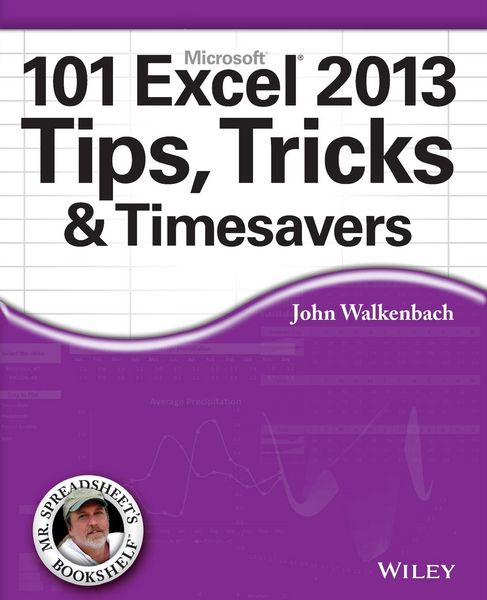
101 Excel 2013 Tips, Tricks and Timesavers
-
- Taschenbuch ausgewählt
- eBook
-
Sprache:Englisch
Fr. 49.90
inkl. gesetzl. MwSt.,
Beschreibung
Produktdetails
Einband
Taschenbuch
Verlag
John Wiley & SonsSeitenzahl
320
Maße (L/B/H)
3.3/22.3/27.7 cm
Gewicht
1547 g
Auflage
1. Auflage
Sprache
Englisch
ISBN
978-1-118-64218-4
Get the most out of Excel 2013 with this exceptional advice from Mr. Spreadsheet himself!
Excel 2013 is excellent, but there's lots to learn to truly excel at Excel! In this latest addition to his popular Mr. Spreadsheet's Bookshelf series, John Walkenbach, aka "Mr. Spreadsheet," shares new and exciting ways to accomplish and master all of your spreadsheet tasks. From taming the Ribbon bar to testing and tables, creating custom functions, and overcoming "impossible" charts, mixing nesting limits, and more, 101 Excel 2013 Tips, Tricks, & Timesavers will save you time and help you avoid common spreadsheet stumbling blocks.
* Reveals ways to maximize the power of Excel to create robust applications
* Draws on John Walkenbach's years of experience using Excel and writing more than 50 books
* Shares tips and tricks for dealing with function arguments, creating add-ins, using UserForms, working with dynamic chart data, and changing data entry orientation
* Provides shortcuts and helpful techniques for sorting more than three columns, entering fake data for testing purposes, and setting up powerful pivot tables
101 Excel 2013 Tips, Tricks, & Timesavers is packed with information that you need to know in order to confidently and seamlessly master the challenges that come with using Excel!
Excel 2013 is excellent, but there's lots to learn to truly excel at Excel! In this latest addition to his popular Mr. Spreadsheet's Bookshelf series, John Walkenbach, aka "Mr. Spreadsheet," shares new and exciting ways to accomplish and master all of your spreadsheet tasks. From taming the Ribbon bar to testing and tables, creating custom functions, and overcoming "impossible" charts, mixing nesting limits, and more, 101 Excel 2013 Tips, Tricks, & Timesavers will save you time and help you avoid common spreadsheet stumbling blocks.
* Reveals ways to maximize the power of Excel to create robust applications
* Draws on John Walkenbach's years of experience using Excel and writing more than 50 books
* Shares tips and tricks for dealing with function arguments, creating add-ins, using UserForms, working with dynamic chart data, and changing data entry orientation
* Provides shortcuts and helpful techniques for sorting more than three columns, entering fake data for testing purposes, and setting up powerful pivot tables
101 Excel 2013 Tips, Tricks, & Timesavers is packed with information that you need to know in order to confidently and seamlessly master the challenges that come with using Excel!
Noch keine Bewertungen vorhanden
Verfassen Sie die erste Bewertung zu diesem Artikel
Helfen Sie anderen Kundinnen und Kunden durch Ihre Meinung.